“So once you have a design on your computer, you can prototype a single copy on your desktop fabricator—or upload it to a commercial manufacturing service and generate thousands. Essentially, you “print local” on your MakerBot and “print global” with cloud manufacturing services ranging from Shapeways and Ponoko to Chinese mass-production facilities found through Alibaba.com. Modern CAD software like the free Autodesk 123D even offers wizards to make it simple to go from one copy to many. All you have to do is click the right buttons, enter your credit card number, and you’re in the manufacturing business. The services will even ship the finished goods directly to customers.”
I’m sure Starfleet started with extruded colored plastics as well. This is impressive stuff and for $2,000 it’s getting more affordable for hackerspaces, DIY groups, schools and colleges – not to mention the individual.
“Remixing is the adoption, alteration, and recombination of pre-existing cultural texts (songs, literature, paintings, etc.) to create something new.” (Wikipedia)
Remixing is not inherently a negative word. It has become one for many people due to it’s often used association with copying and plagiarism.
Copying something is directly reproducing the existing work with no new interpretation and no credit to the original artist. This does nothing to move things forward. It is duplication.
Remixing is paying homage. It’s being aware of the elements of a prior work that inspire you and being untroubled (on purpose or unexpectedly) of those that don’t.
If someone came to you after giving a presentation on a new idea, product, service you were developing and said, “That’s just a remix of Picasso and thermodynamics.” it would be considered negative. This is because someone used the word remix using the negative definition; of copying and plagiarism.
It would also be rude to approach anyone after a presentation with negative laden criticism, but that’s another story.
If someone came to you after presenting your work and said, “That’s an interesting approach. I never thought to combine Picasso and thermodynamics.”. That would be a complement. The critic would have made the connection (explicit or implicit in your presentation) between two previous works and seen the unique value of combining the two inspirations.
All work is influenced by prior work. Which in turn was inspired by even older prior work. Continuing ad infinitum. No new work exists without influence – even if that influence is to do the exact opposite!
I see remix (and the surrounding culture) the penultimate way of expressing how we’re all interconnected – that every action ripples out and causes new twists and turns down unexplored paths. This is comforting, positive and powerful. It moves things forward and is an intrinsic part in making anything new.
—-
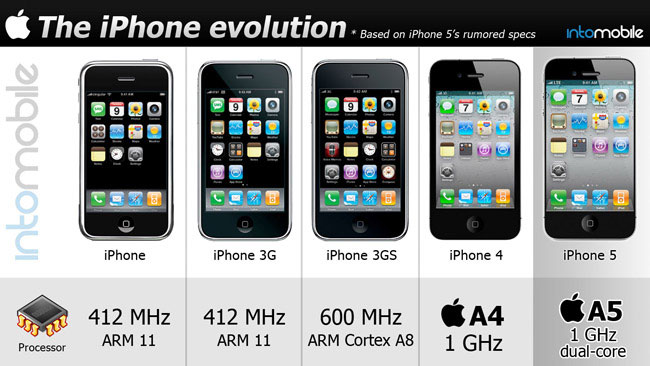
Inspiration can also happen within a single body of work. See this image of BMW cars over the years and this one of Apple iPhones.
Another recently oft-cited example of remix at work: http://gizmodo.com/343641/1960s-braun-products-hold-the-secrets-to-apples-future
Side note: I chuckled to myself while writing this. I just remixed the negative language of remix to come up with a positive definition of remix. I remixed remix.
As I’ve written about before, we use Semantic MediaWiki extensively at work. One way we use it is to handle research requests for or Solution Architecture team. We have a customer-facing form1 for all requests and the resulting page is accessible for anyone across the organization – sharing our findings beyond the original requester.
For any requests submitted, the form creates a new wiki article as a sub page of “Research”. This is done by adding an attribute of “query string=super_page=Research” to the form.
It helps us to keep things organized by denoting which pages are specific to research vs. general wiki pages.
The problem is how semantic queries display pages that have a ‘super page’ prefix. By default the query results will show the super page as part of the formatting.
Demo of a default query with no template
See the “Research/” prefix on every item? That’s rather redundant (and ugly), so I sought out a way to remove the ‘Research/’ prefix when displaying the results, but still provide the correct link to the sub page.
The magic is two-part. First, you need to make sure your #ask query has the attribute of “link” set to none (link=none) and “format” set to template (format=template)2. This strips out any default formatting of the results. Here’s the #ask query we’re using. Note you’ll obviously want to change the variables to fit your properties.
{{#ask: [[Category:Research]]
|?Research_Level_Requested
|?Research_Submitted_Date
|limit=15
|link=none
|format=template
|template=Research Results Template
|order=DESC
|default=No related research found. Submit a [[Research]] request?
|searchlabel=”’15 Most Recent Research Requests Loaded. View all Research?”’
}}
Then, for your template you’ll use the #arraymap function to format the output.
What this does is for each result it removes the “super-page” prefix (in this case Research/) from the first property returned – the page name.
{{#arraymap:{{{1}}}|Research/|
It then replaces it with the variable noSuperName.
|Research/|noSuperName|
Finally we actually construct a normal internal wiki hyperlink by adding “Research/” and the variable together in the proper syntax.
[[Research/NoSuperName|NoSuperName]]
The remaining variables {{{2}}} and {{{3}}} are called as normal and a break tag is added to keep each query result on its own line.
The result is something like the following screenshot.
Custom template sans-super page prefix
You will then have nicely formatted results that are easier to digest.
I hope this helps those looking to extend the semantic queries and produce clean, repeatable results. Let me know in the comments if you have any questions or ideas of your own.
At work we use Semantic Mediawiki to augment an internal wiki running on Mediawiki. It’s used to house anything from process documentation to troubleshooting guides for our IT department. We recently figured out how to use Semantic Forms and the #ask function to create a customizable and reusable folksonomy. Read on to find out more.
—-
One of the functions of my team is to fulfill research requests for co-workers within our IT department. These requests can be as simple as something like finding a white paper from a vendor or research organization, or as in-depth as custom analysis and reports of a given topic.
In order to handle these requests, we’ve created a submission and request fulfillment process using Semantic Forms.
Co-workers can fill out the form and we’ll use the resulting wiki page to fulfill the request.
One of the fields in the form that we use when fulfilling the request is an open text box for tagging related topic areas. Those fulfilling the research request can use a comma separated list of items to generate a folksonomy that can be used elsewhere on the wiki.
In the form we have the following. The property “Research Related Tags” is a property with the type of “Page”.
The #arraymap function pulls back the list of tags and displays them in the template.
For example, I might get a request for researching more about Hover Cars. Hover Cars might be related to other wiki pages such as our Transportation page or a page titled Automobiles. If I enter a comma separated list of related pages into the tag box when fulfilling a research request (such as ‘transportation’ or ‘automobiles’, links to the research documentation will automatically be created to any page that matches that name.
Now the cool part is that we have a lot of existing content elsewhere in the wiki and we could never predict what new content is going to be created.
What we’ve done, is to modify the default template for every wiki page to pull back any research documentation related to that page. If you were on our Automobiles page at the bottom would be a link to any research requests tagged Automobiles. Automagically!
Silly nonsensical test items all tagged with “Big Data”
To do this, we use the #ask parser function to query the “Research Related Tags” property, but only show research requests that match the current page name.
{{#ask: [[Category:Research]] [[Research_Related_Tags::~{{FULLPAGENAME}}]]
|? Research_Level_Requested = Research Type
| ?PAGENAME= Entry Title
|format=ol
|limit=10
|link=subject
|default=No related research found. Submit a [[Research]] request?
|searchlabel=More Research Information
}}
This starts the inline query, limited to the Category of Research that has a value for “Research Related Tags similar (~ is a semantic wildcard) to the current FULLPAGENAME.
The rest of the ask command is pretty standard semantic media wiki syntax. The one additional item to point out is the default= condition. As I mentioned earlier, this query is on every wiki page and some (a lot of) wiki pages won’t have related tags.
If no research exists users are given the suggestion of submitting a research request. When new pages are created and they match existing research (or vice versa) this part of the page will automatically update with related research.
I hope this provides inspiration into a new way of extending the use of semantic data in your Mediawiki environment. Leave a comment if you have any questions.
As I was flipping through my now 120GB+ iPhoto library I realized that my family is now on our 4th digital camera. Above is the oldest photo I have. This was taken with my wife’s (then girlfriend) Olympus C-830L3. That was back in December of 1999.
Fast forward to today and here’s a shot taken with our newest camera.
My Dog at Night
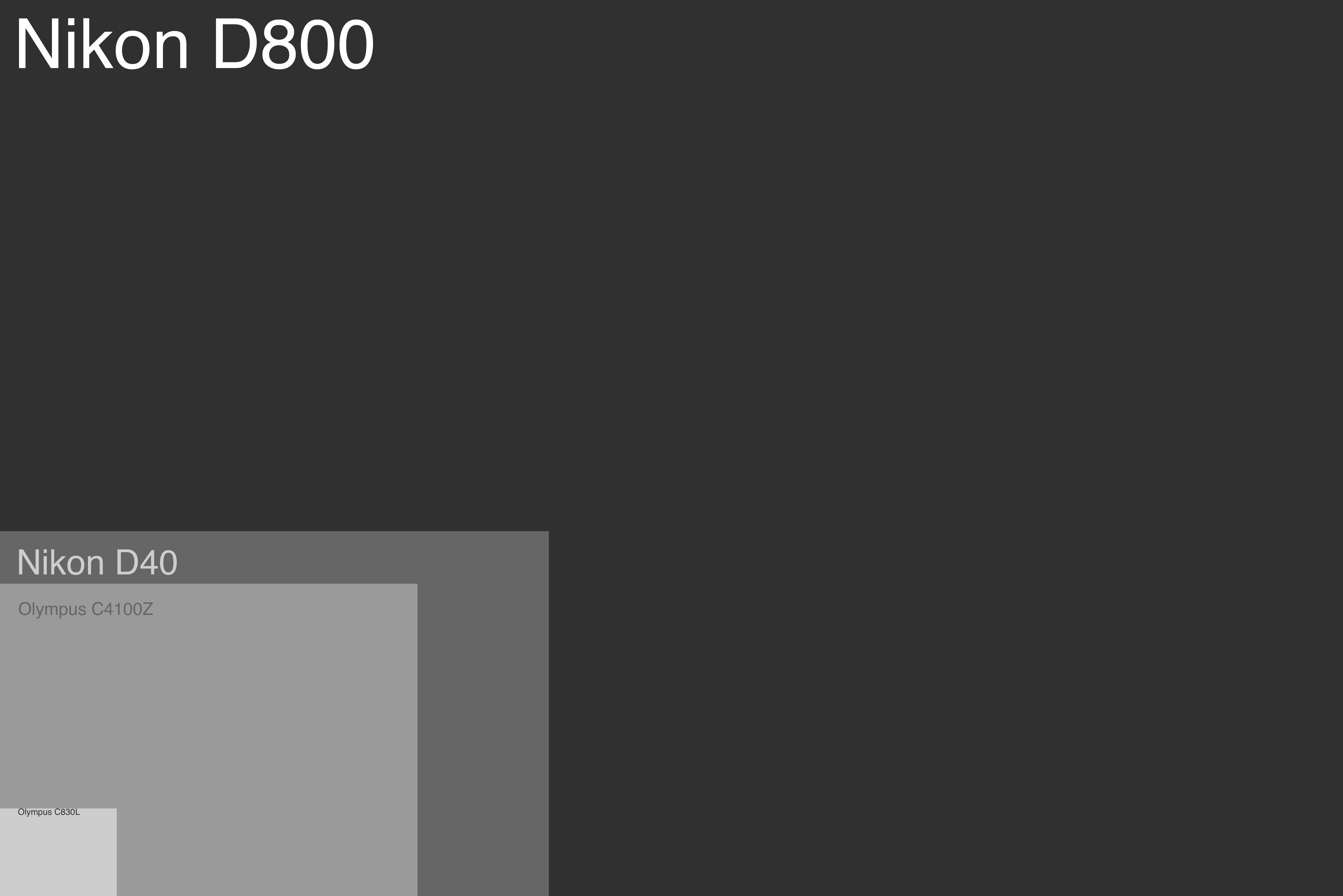
Because I like visualizing information, I made a chart comparing all of our past cameras resolution against our most recent.
Click for 36.3 megapixels of chart love
This chart shows a 1:1 scale comparison between that first camera and our most recent – a Nikon D800. That’s a pretty substantial increase in megapixels. That’s to be expected, as we’ve gone from basic point-and-shoots to full-body DSLRs over the past 13 years. While megapixels aren’t the only improvement made since 19994, this is just one way of visualizing the dramatic improvements in digital photography since I started.
1.3 to 36.3 megapixels of history. I’ve loved every camera and I’m excited to see how things look in another 12 years!